Showing posts with label Baremetal. Show all posts

Tuesday, January 11, 2022

Adding VmWare Worker Node to OpenShift Cluster the BareMetal IPI Way


In a previous blog I discussed how one could provide Intelligent Platform Management Interface (IPMI) capabilities to a VmWare virtual machine.  I also eluded to being able to deploy OpenShift Baremetal IPI on VmWare virtual machines given the IPMI requirement was met for the purpose of a non production lab scenario.   However since I do not have enough lab equipment to run a full blown VmWare ESXi with enough virtual machines to mimic an OpenShift Baremetal IPI deployment, I will do the next best thing and demonstrate how to add a VmWare virtual machine acting as an OpenShift worker using the scale up capability.

Before we get started though lets review the lab setup for this exercise.   The diagram below shows that we have a 3 master cluster on a RHEL KVM hypervisor node.  These nodes while virtual are using VBMC to enable IPMI and hence the cluster was deployed as a OpenShift Baremetal IPI cluster.   We have an additional worker we would like to add that resides on an ESXi hypervisor host.   Using the virtualbmcforvsphere container (discussed in a previous blog) we can mimic IPMI for that worker node and thus treat it like a baremetal node.

Now that we have an understanding of the lab layout lets get to adding the additional VmWare worker node to our cluster.   The first step is to create the vmware-bmh.yaml which will contain the secret information for the IPMI credentials base64 encoded and the baremetal host information:

$ cat << EOF > ~/vmware-bmh.yaml
---
apiVersion: v1
kind: Secret
metadata:
  name: worker-4-bmc-secret
type: Opaque
data:
  username: YWRtaW4=
  password: cGFzc3dvcmQ=
---
apiVersion: metal3.io/v1alpha1
kind: BareMetalHost
metadata:
  name: worker-4
spec:
  online: true
  bootMACAddress: 00:50:56:83:da:a1
  bmc:
    address: ipmi://192.168.0.10:6801
    credentialsName: worker-4-bmc-secret
EOF

Once we have created the vmware-bmh.yaml file we can go ahead and create the resources with the oc command below:

$ oc create -f vmware-bmh.yaml -n openshift-machine-api
secret/worker-4-bmc-secret created
baremetalhost.metal3.io/worker-4 created	

Once the command is executed this will kick off the process of registering the node in ironic, turning the node on via IPMI and then inspecting the node to determine its resource properties.  The video below will show what is happening on the console of the worker node during this process:


Besides watching from the console, we can also run some oc commands to see the status of the worker node during this process as well:

$ oc get baremetalhosts -n openshift-machine-api
NAME       STATE                    CONSUMER               ONLINE   ERROR
master-0   externally provisioned   kni20-cmq65-master-0   true     
master-1   externally provisioned   kni20-cmq65-master-1   true     
master-2   externally provisioned   kni20-cmq65-master-2   true     
worker-4   registering                                     true 
$ oc get baremetalhosts -n openshift-machine-api
NAME       STATE                    CONSUMER               ONLINE   ERROR
master-0   externally provisioned   kni20-cmq65-master-0   true     
master-1   externally provisioned   kni20-cmq65-master-1   true     
master-2   externally provisioned   kni20-cmq65-master-2   true     
worker-4   inspecting                                      true     

$ oc get baremetalhosts -n openshift-machine-api
NAME       STATE                    CONSUMER               ONLINE   ERROR
master-0   externally provisioned   kni20-cmq65-master-0   true     
master-1   externally provisioned   kni20-cmq65-master-1   true     
master-2   externally provisioned   kni20-cmq65-master-2   true     
worker-4   match profile                                   true     

$ oc get baremetalhosts -n openshift-machine-api
NAME       STATE                    CONSUMER               ONLINE   ERROR
master-0   externally provisioned   kni20-cmq65-master-0   true     
master-1   externally provisioned   kni20-cmq65-master-1   true     
master-2   externally provisioned   kni20-cmq65-master-2   true     
worker-4   ready                                           true  

Once the process is complete the new worker node will be marked ready and left powered on.  Now we can move onto scaling up the cluster.   To do this we first need to find the name of the machineset which in this case is kni20-cmq65-worker-0.  With that information we can then scale up the node count from 0 to 1 and this will trigger the provisioning process:

$ oc -n openshift-machine-api get machineset
NAME                   DESIRED   CURRENT   READY   AVAILABLE   AGE
kni20-cmq65-worker-0   0         0                             17h

$ oc -n openshift-machine-api scale machineset kni20-cmq65-worker-0 --replicas=1
machineset.machine.openshift.io/kni20-cmq65-worker-0 scaled

The video below will show what happens during the scaling process from the worker nodes console point of view.  In summary what will happen is the node will turn on, an RHCOS image will get written, the node will reboot, the ostree will get updated, the node will reboot again and finally the services to enable the node to join the cluster will start:


Besides watching from the console of the worker node we can also following along at the cli with the oc command to show the state of the worker node:

$ oc get baremetalhosts -n openshift-machine-api
NAME       STATE                    CONSUMER                     ONLINE   ERROR
master-0   externally provisioned   kni20-cmq65-master-0         true     
master-1   externally provisioned   kni20-cmq65-master-1         true     
master-2   externally provisioned   kni20-cmq65-master-2         true     
worker-4   provisioning             kni20-cmq65-worker-0-lhd92   true 

And again using the oc command we can see the worker node has been provisioned:

$ oc get baremetalhosts -n openshift-machine-api
NAME       STATE                    CONSUMER                     ONLINE   ERROR
master-0   externally provisioned   kni20-cmq65-master-0         true     
master-1   externally provisioned   kni20-cmq65-master-1         true     
master-2   externally provisioned   kni20-cmq65-master-2         true     
worker-4   provisioned              kni20-cmq65-worker-0-lhd92   true 

Once the worker node has shown provisioned and the node has rebooted the second time, we can then follow the status of the worker node with the oc get nodes command: 

$ oc get nodes
NAME                             STATUS     ROLES           AGE   VERSION
master-0.kni20.schmaustech.com   Ready      master,worker   17h   v1.22.0-rc.0+a44d0f0
master-1.kni20.schmaustech.com   Ready      master,worker   17h   v1.22.0-rc.0+a44d0f0
master-2.kni20.schmaustech.com   Ready      master,worker   17h   v1.22.0-rc.0+a44d0f0
worker-4.kni20.schmaustech.com   NotReady   worker          39s   v1.22.0-rc.0+a44d0f0

Finally after the scaling process is completed and the worker node should display that it is ready and joined to the cluster:

$ oc get nodes
NAME                             STATUS   ROLES           AGE   VERSION
master-0.kni20.schmaustech.com   Ready    master,worker   17h   v1.22.0-rc.0+a44d0f0
master-1.kni20.schmaustech.com   Ready    master,worker   17h   v1.22.0-rc.0+a44d0f0
master-2.kni20.schmaustech.com   Ready    master,worker   17h   v1.22.0-rc.0+a44d0f0
worker-4.kni20.schmaustech.com   Ready    worker          58s   v1.22.0-rc.0+a44d0f0

Hopefully this provides a good example of how to use VmWare virtual machines to simulate baremetal nodes for OpenShift IPI deployments.

Thursday, January 06, 2022

BareMetal IPI OpenShift Lab on VmWare?


I see a lot of customers asking about being able to deploy an OpenShift Baremetal IPI lab or proof of concepts in VmWare.  Many want to do it to try out the deployment method without having to invest in the physical hardware.   The problem faced with VmWare is the lack of an Intelligent Platform Management Interface (IPMI) for the virtual machines.   I am not knocking VmWare either in this case because they do offer a robust API via Vcenter that lets one do quite a bit via scripting for automation.  However the OpenShift Baremetal IPI install process requires IPMI or RedFish which are standards on server hardware.  There does exist though a project that can possibly fill this gap though but it should only be used for labs and proof of concepts not production.

The project that solves this issue is called virtualbmc-for-vsphere.  If the name virtualbmc sounds familiar its because that project was originally designed to provide IPMI to KVM virtual machines.  However this forked version of virtualbmc-for-vsphere uses the same concepts to provide an IPMI interface for VmWare virtual machines.  Only the code knows how to talk to Vcenter to power on/of and set bootdevices  of the virtual machines.  Here are some example of what IPMI commands are supported:

# Power the virtual machine on, off, graceful off, reset, and NMI. Note that NMI is currently experimental
ipmitool -I lanplus -U admin -P password -H 192.168.0.1 -p 6230 power on|off|soft|reset|diag

# Check the power status
ipmitool -I lanplus -U admin -P password -H 192.168.0.1 -p 6230 power status

# Set the boot device to network, disk or cdrom
ipmitool -I lanplus -U admin -P password -H 192.168.0.1 -p 6230 chassis bootdev pxe|disk|cdrom

# Get the current boot device
ipmitool -I lanplus -U admin -P password -H 192.168.0.1 -p 6230 chassis bootparam get 5

# Get the channel info. Note that its output is always a dummy, not actual information.
ipmitool -I lanplus -U admin -P password -H 192.168.0.1 -p 6230 channel info

# Get the network info. Note that its output is always a dummy, not actual information.
ipmitool -I lanplus -U admin -P password -H 192.168.0.1 -p 6230 lan print 1

From the commands above it looks like we get all the bits that are required from an IPMI standpoint when doing a OpenShift BareMetal IPI deployment.  

Before I proceed to show how to setup virtualbmc-for-vsphere lets quick look at our test virtual machine within Vcenter (vcenter.schmaustech.com).   From the picture below we can see that there is a virtual machine called rheltest which is currently powered on and has an ipaddress of 192.168.0.226.  Once we get virtualbmc-for-vsphere configured we will use IPMI commands to power down the host and then power it back up.


Now that we have familiarized ourself with the VmWare environment lets take a moment to setup virtualbmc-for-vsphere.   There are one of two methods for installation: using pip (more information can be found here) and running via a container.   In this discussion I will be using the container method since that is more portable for me and easier to stand up and remove from my lab environment.  The first thing we need to do is pull the image:

# podman pull ghcr.io/kurokobo/vbmc4vsphere:0.0.4
Trying to pull ghcr.io/kurokobo/vbmc4vsphere:0.0.4...
Getting image source signatures
Copying blob 7a5d07f2fd13 done  
Copying blob 25a245937421 done  
Copying blob 2606867e5cc9 done  
Copying blob 385bb58d08e6 done  
Copying blob ab14b629693d done  
Copying blob bf5952930446 done  
Copying config 789cdc97ba done  
Writing manifest to image destination
Storing signatures
789cdc97ba7461f673cc7ffc8395339f38869abb679ebd0703c2837f493062db

With the image pulled we need to start the container with the following syntax below.  I should note that the -p option can be specified more then once using different port numbers.  Each of the port numbers will then in turn be used for a virtual machine running in VmWare.

# podman run -d --name vbmc4vsphere -p "6801:6801/udp" -v vbmc-volume:/vbmc/.vbmc ghcr.io/kurokobo/vbmc4vsphere:0.0.4
ddf82bfdb7899e9232462ae3e8ea821d327b0db1bc8501c3827644aad9830736
# podman ps
CONTAINER ID  IMAGE                                 COMMAND               CREATED        STATUS            PORTS                   NAMES
ddf82bfdb789  ghcr.io/kurokobo/vbmc4vsphere:0.0.4   --foreground          3 seconds ago  Up 3 seconds ago  0.0.0.0:6801->6801/udp  vbmc4vsphere

Now that the vbmc4vsphere container is running lets go ahead and get a bash shell within the container:

# podman exec -it vbmc4vsphere /bin/bash
root@ddf82bfdb789:/# 

Inside the container we will go ahead and use the vbmc command to add our rheltest virtual machine.  For this command to work we need to specify the port that will be listening (should be one of the ports specified with the -p option at container run time), a IPMI username and password, the vcenter username and password and the vcenter hostname or ipaddress:

root@ddf82bfdb789:/# vbmc add rheltest --port 6801 --username admin --password password --viserver 192.168.0.30 --viserver-password vcenterpassword --viserver-username administrator@vsphere.local
root@ddf82bfdb789:/# vbmc list
+----------+--------+---------+------+
| VM name  | Status | Address | Port |
+----------+--------+---------+------+
| rheltest | down   | ::      | 6801 |
+----------+--------+---------+------+
root@ddf82bfdb789:/# 

Once the entry is created we need to start it so its listening for incoming IPMI requests:

root@ddf82bfdb789:/# vbmc start rheltest
root@ddf82bfdb789:/# vbmc list
+----------+---------+---------+------+
| VM name  | Status  | Address | Port |
+----------+---------+---------+------+
| rheltest | running | ::      | 6801 |
+----------+---------+---------+------+
root@ddf82bfdb789:/# exit
exit
#

Now lets grab the ipaddress off the host where the virtualbmc-for-vsphere container is running.   We need this value when we specify the host in our IPMI command:

# ip addr show dev ens3
2: ens3: <ltBROADCAST,MULTICAST,UP,LOWER_UP>gt mtu 1500 qdisc fq_codel state UP group default qlen 1000
    link/ether 52:54:00:b9:97:58 brd ff:ff:ff:ff:ff:ff
    inet 192.168.0.10/24 brd 192.168.0.255 scope global noprefixroute ens3
       valid_lft forever preferred_lft forever
    inet6 fe80::6baa:4a96:db6b:88ee/64 scope link noprefixroute 
       valid_lft forever preferred_lft forever

Now let test if we can see the power status of our rheltest host with ipmitool.  We know in our previous screenshot that it was on.  I will also run a ping to show the host is up and reachable.

# ipmitool -I lanplus -U admin -P password -H 192.168.0.10 -p 6801 power status
Chassis Power is on

# ping 192.168.0.226 -c 4
PING 192.168.0.226 (192.168.0.226) 56(84) bytes of data.
64 bytes from 192.168.0.226: icmp_seq=1 ttl=64 time=0.753 ms
64 bytes from 192.168.0.226: icmp_seq=2 ttl=64 time=0.736 ms
64 bytes from 192.168.0.226: icmp_seq=3 ttl=64 time=0.651 ms
64 bytes from 192.168.0.226: icmp_seq=4 ttl=64 time=0.849 ms

--- 192.168.0.226 ping statistics ---
4 packets transmitted, 4 received, 0% packet loss, time 3109ms
rtt min/avg/max/mdev = 0.651/0.747/0.849/0.072 ms


So we confirmed the host is up so lets go ahead and power it off:

# ipmitool -I lanplus -U admin -P password -H 192.168.0.10 -p 6801 power off
Chassis Power Control: Down/Off

Now lets check with ipmitool and see if the status is also marked as off and if it responds to a ping:

# ipmitool -I lanplus -U admin -P password -H 192.168.0.10 -p 6801 power status
Chassis Power is off

# ping 192.168.0.226 -c 4 -t 10
PING 192.168.0.226 (192.168.0.226) 56(84) bytes of data.
From 192.168.0.10 icmp_seq=1 Destination Host Unreachable
From 192.168.0.10 icmp_seq=2 Destination Host Unreachable
From 192.168.0.10 icmp_seq=3 Destination Host Unreachable
From 192.168.0.10 icmp_seq=4 Destination Host Unreachable

--- 192.168.0.226 ping statistics ---
4 packets transmitted, 0 received, +4 errors, 100% packet loss, time 3099ms
pipe 4

Looks like the host is off and no longer responding which is what we expected.  From the Vcenter console we can see rheltest has also been powered off.   I should note that since we are using the VmWare API's under the covers in virtualbmc-for-vsphere the shutdown task also got recorded in Vcenter under recent tasks.


Lets go ahead and power rheltest back on with the ipmitool command:

# ipmitool -I lanplus -U admin -P password -H 192.168.0.10 -p 6801 power on
Chassis Power Control: Up/On

We can again use ipmitool to validate the power status and ping to validate the connectivity:

# ipmitool -I lanplus -U admin -P password -H 192.168.0.10 -p 6801 power status
Chassis Power is on

# ping 192.168.0.226 -c 4
PING 192.168.0.226 (192.168.0.226) 56(84) bytes of data.
64 bytes from 192.168.0.226: icmp_seq=1 ttl=64 time=0.860 ms
64 bytes from 192.168.0.226: icmp_seq=2 ttl=64 time=1.53 ms
64 bytes from 192.168.0.226: icmp_seq=3 ttl=64 time=0.743 ms
64 bytes from 192.168.0.226: icmp_seq=4 ttl=64 time=0.776 ms

--- 192.168.0.226 ping statistics ---
4 packets transmitted, 4 received, 0% packet loss, time 3066ms
rtt min/avg/max/mdev = 0.743/0.976/1.528/0.323 ms

Looks like rheltest is back up again and reachable. The Vcenter console also shows that rheltest has been powered on again:


Now that we understand how virtualbmc-for-vsphere works it would be rather easy to configure an OpenShift BareMetal IPI lab inside of VmWare.   While I will not go into the details here there are additional blogs I have written around the requirements for doing a baremetal IPI deployment and those should be no different in this scenario now that we have the IPMI requirement met in VmWare.

Tuesday, January 04, 2022

Using VMware for OpenShift BM IPI Provisioning


Anyone who has looked at the installation requirements for an OpenShift Baremetal IPI installation knows that a provisioning node is required for the deployment process.   This node could potentially be another physical server or a virtual machine, either way though it needs to be a node running Red Hat Enterprise Linux 8.   The most common example is where a customer would just use one of their clusters physical nodes, install RHEL 8 on it, deploy OpenShift and then reincorporate that node into the newly built cluster as a worker.   I myself have personally used a provisioning node that is virtualized on kvm/libvirt with RHEL 8 host.  In this example the deployment process, specifically the bootstrap virtual machine, is then nested.   With that said though I am seeing a lot of requests from customers that want to leverage a virtual machine in VMware to handle the provisioning duties, especially since after the provisioning process, there really is not a need to keep that node around. 

While it is entirely possible to use a VMware virtual machine as the provisioning node there are some specific things that need to be configured to ensure that the nested bootstrap virtual machine can launch properly and obtain the correct networking to function and deploy the OpenShift cluster.  The following attempts to highlight those requirements without providing a step by step installation guide since I have written about the OpenShift BM IPI process many times before.

First lets quickly take a look at the architecture of the provisioning virtual machine on VMware.  The following figure show a simple ESXi 7.x host (Intel NUC) with a single interface into it that has multiple trunked vlans from a Cisco 3750.

From the Cisco 3750 we can see the switch port is configured to allow the trunking of the two vlans we will need to be present on the provisioning virtual machine running on the ESXi hypervisor host.   The first vlan is vlan 40 which is the provisioning network used for PXE booting the cluster nodes.  Note that this vlan needs to also be our native vlan because PXE does not know about vlan tags.   The second vlan is vlan 10 which provides access for the baremetal network and for this one it can be tagged as such.  Other vlans are trunked to these ports but they are not needed for this particular configuration and are only there for flexibility when I create virtual machines for other lab testing.

!
interface GigabitEthernet1/0/6
 switchport trunk encapsulation dot1q
 switchport trunk native vlan 40
 switchport trunk allowed vlan 10,20,30,40,50
 switchport mode trunk
 spanning-tree portfast trunk
!

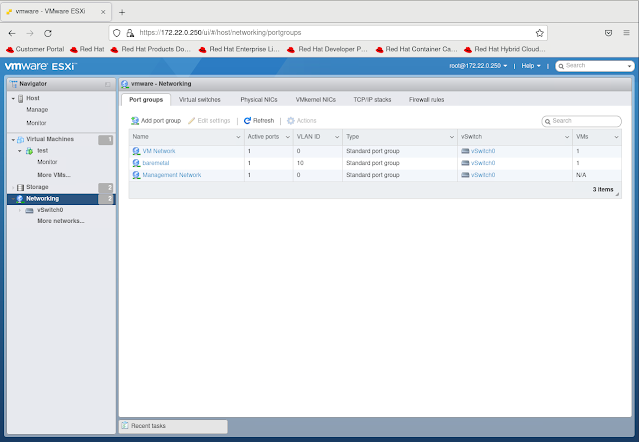
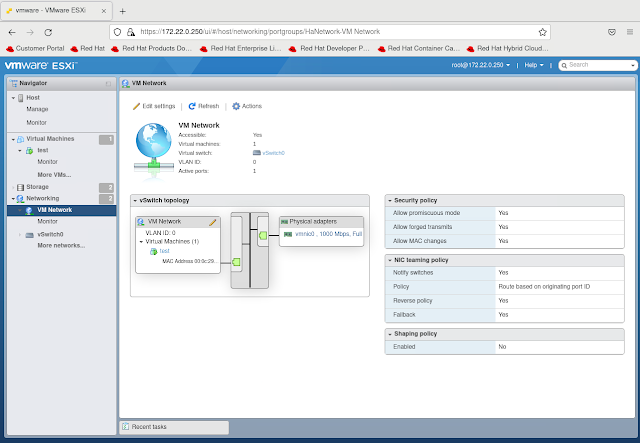
Now lets login to the VMware console and look at our networks from the ESXi point of view.   Below we can see that I have three networks: VM Network, baremetal and Management Network.   The VM Network is my provisioning network or native vlan 0 in the diagram above and provides the PXE boot network required for BM IPI deployment when using PXE.  Its also the network that gives me access to this ESXi host.   The baremetal network is the vlan 10 network and will provide the baremetal access for the bootstrap VM when it runs nested in my provisioning node.


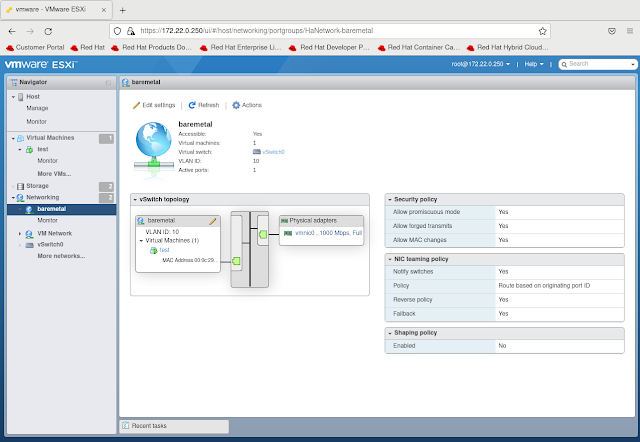
If we look at the baremetal network for example we can see that the security policies for promiscuous mode, forged transmits and MAC changes are all set to yes.   By default VMware has these set to no but they need to be enabled like I have in order for the bootstrap VM that will be run nested on our virtual provisioning node to get a baremetal ipaddress from DHCP.


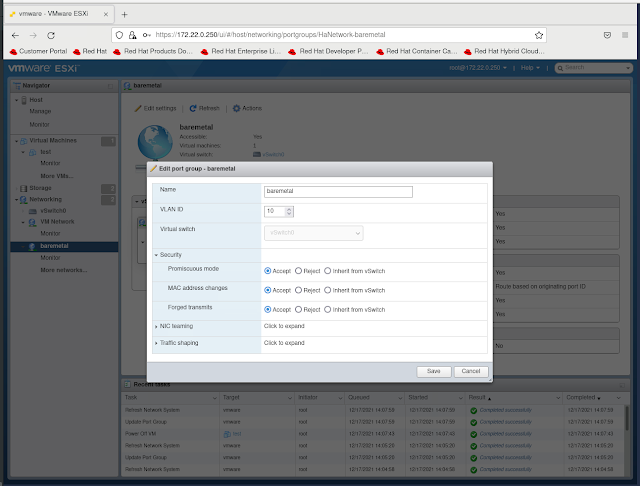
To change this setting I just needed to edit the port group and select the accept radio buttons for those three options and then save it:


After the baremetal network has been configured correctly I went ahead and made the same changes to the VM Network which again is my provisioning network:


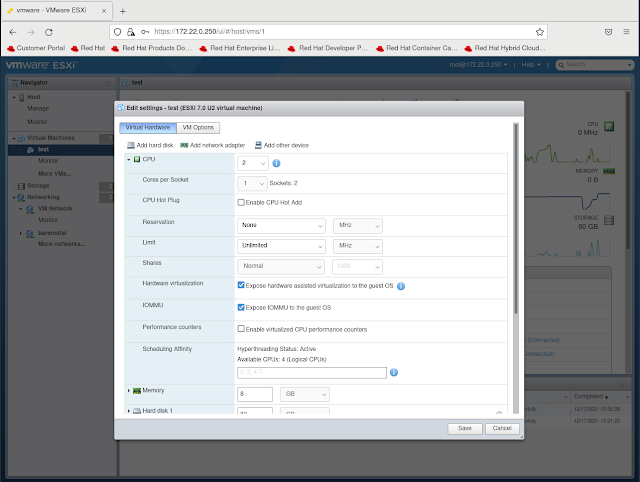
Now that I have made the required network configurations I can go ahead and create my provisioning node virtual machine in VMware.   However we need to make sure that the VM is created to pass the hardware virtualization through to the VM.  Doing so ensure we will be able to launch a bootstrap VM nested inside the provisioning node when we go to do the baremetal IPI deployment.   Below is a screenshot where that configuration setting needs to be made.  The fields for Hardware Virtualization and IOMMU need to be checked:


With the hardware virtualization enabled we can go ahead and install Red Hat Enterprise Linux 8 on the virtual machine just like we would for the baremetal IPI deployment requirements.

Once we have RHEL 8 installed we can further validate that the virtual machine in VMware is configured appropriately for us to run a nested VM inside by executing the following command:

$ virt-host-validate 
  QEMU: Checking for hardware virtualization                                 : PASS
  QEMU: Checking if device /dev/kvm exists                                   : PASS
  QEMU: Checking if device /dev/kvm is accessible                            : PASS
  QEMU: Checking if device /dev/vhost-net exists                             : PASS
  QEMU: Checking if device /dev/net/tun exists                               : PASS
  QEMU: Checking for cgroup 'cpu' controller support                         : PASS
  QEMU: Checking for cgroup 'cpuacct' controller support                     : PASS
  QEMU: Checking for cgroup 'cpuset' controller support                      : PASS
  QEMU: Checking for cgroup 'memory' controller support                      : PASS
  QEMU: Checking for cgroup 'devices' controller support                     : PASS
  QEMU: Checking for cgroup 'blkio' controller support                       : PASS
  QEMU: Checking for device assignment IOMMU support                         : WARN (No ACPI DMAR table found, IOMMU either disabled in BIOS or not supported by this hardware platform)
  QEMU: Checking for secure guest support                                    : WARN (Unknown if this platform has Secure Guest support)

If everything passing (the last two warning are okay) then one is ready to continue to do a baremetal IPI deployment using the virtual machine as a provisioning node in VMware.

Monday, September 20, 2021

Deploy Single Node OpenShift via OpenShift Installer on Nvidia Jetson AGX


In a previous blog I walked through a disconnected single node OpenShift deployment using the OpenShift installer.   In this blog I will use a lot of the same steps but instead of installing on an X86 system we will try our hand at installing on a Nvidia Jetson AGX which contains an Arm processor.

Before we begin lets cover what this blog already assumes exists as prerequisites:
  • Podman, the oc binary and the openshift-install binary already exist on the system
  • A disconnected registry is already configured and has the mirrored aarch64 contents of the images for a given OpenShift release.   
  • A physical Nvidia Jetson AGX with UEFI firmware and the ability to boot an ISO image from USB
  • DNS entries for basic baremetal IPI requirements exist. My environment is below:
master-0.kni7.schmaustech.com IN A 192.168.0.47
*.apps.kni7.schmaustech.com IN A 192.168.0.47
api.kni7.schmaustech.com IN A 192.168.0.47
api-int.kni7.schmaustech.com   IN A 192.168.0.47

First lets verify the version of OpenShift we will be deploying by looking at the output of the oc version and openshift-install version:


$ oc version
Client Version: 4.9.0-rc.1
$ ./openshift-install version
./openshift-install 4.9.0-rc.1
built from commit 6b4296b0df51096b4ff03e4ec4aeedeead3425ab
release image quay.io/openshift-release-dev/ocp-release@sha256:2cce76f4dc2400d3c374f76ac0aa4e481579fce293e732f0b27775b7218f2c8d
release architecture amd64

While it looks like we will be deploying a version of 4.9.0-rc.1.  We technically will be deploying a version 4.9.0-rc.2 for aarch64.   We will set an image override for aarch64/4.9.0-rc2 a little further in our process.  Before that though, ensure the disconnected registry being used has the images for 4.9.0-rc.2 mirrored.  If not use a procedure like I have used in one of my previous blogs to mirror the 4.9.0-rc.2 images.

Now lets pull down a few files we will need for our deployment iso.   We need to pull down both the coreos-installer and the rhcos live iso:

$ wget https://mirror.openshift.com/pub/openshift-v4/clients/coreos-installer/v0.8.0-3/coreos-installer
--2021-09-16 10:10:26--  https://mirror.openshift.com/pub/openshift-v4/clients/coreos-installer/v0.8.0-3/coreos-installer
Resolving mirror.openshift.com (mirror.openshift.com)... 54.172.173.155, 54.173.18.88
Connecting to mirror.openshift.com (mirror.openshift.com)|54.172.173.155|:443... connected.
HTTP request sent, awaiting response... 200 OK
Length: 7649968 (7.3M)
Saving to: ‘coreos-installer’

coreos-installer                                     100%[=====================================================================================================================>]   7.29M  8.83MB/s    in 0.8s    

2021-09-16 10:10:27 (8.83 MB/s) - ‘coreos-installer’ saved [7649968/7649968]

$ wget https://mirror.openshift.com/pub/openshift-v4/aarch64/dependencies/rhcos/pre-release/4.9.0-rc.2/rhcos-live.aarch64.iso
--2021-09-16 10:10:40--  https://mirror.openshift.com/pub/openshift-v4/aarch64/dependencies/rhcos/pre-release/4.9.0-rc.2/rhcos-live.aarch64.iso
Resolving mirror.openshift.com (mirror.openshift.com)... 54.172.173.155, 54.173.18.88
Connecting to mirror.openshift.com (mirror.openshift.com)|54.172.173.155|:443... connected.
HTTP request sent, awaiting response... 200 OK
Length: 1031798784 (984M) [application/octet-stream]
Saving to: ‘rhcos-live.aarch64.iso’

rhcos-live.aarch64.iso                   100%[=====================================================================================================================>] 984.00M  11.2MB/s    in 93s     

2021-09-16 10:12:13 (10.6 MB/s) - ‘rhcos-live.aarch64.iso’ saved [1031798784/1031798784]


Set the execution bit on the coreos-installer which is a utility to embed the ignition file we will generate:

$ chmod 755 coreos-installer

Lets go ahead now and create an install-config.yaml for our single node deployment.  Notice some of the differences in this install-config.yaml.  Specifically we have no worker nodes defined, one master node defined and then we have the BootstrapInPlace section which tells us to use the nvme0n1 device in the node.  We also have our imageContentSources which tells the installer to use the local registry mirror I have already preconfigured.

$ cat << EOF > install-config.yaml
apiVersion: v1beta4
baseDomain: schmaustech.com
metadata:
  name: kni7
networking:
  networkType: OpenShiftSDN
  machineCIDR: 192.168.0.0/24
compute:
- name: worker
  replicas: 0
controlPlane:
  name: master
  replicas: 1
platform:
  none: {}
BootstrapInPlace:
  InstallationDisk: /dev/nvme0n1
pullSecret: '{ "auths": { "rhel8-ocp-auto.schmaustech.com:5000": {"auth": "ZHVtbXk6ZHVtbXk=","email": "bschmaus@schmaustech.com" } } }'
sshKey: 'ssh-rsa AAAAB3NzaC1yc2EAAAADAQABAAACAQDP+5QkRCiuhsYItXj7DzLcOIs2RbCgpMzDtPlt/hfLnDkLGozYIFapMp+o4l+6ornbZ3L+hYE0T8SyvyYVWfm1XpPcVgUIW6qp7yfEyTSRhpGnoY74PD33FIf6BtU2HoFLWjQcE6OrQOF0wijI3fgL0jSzvAxvYoXU/huMx/kI2jBcWEq5cADRfvpeYXhVEJLrIIOepoAZE1syaPT7jQEoLDfvxrDZPKObCOI2vzLiAQXI7gK1uc9YDb6IEA/4Ik4eV2R1+VCgKhgk5RUqn69+8a1o783g1tChKuLwA4K9lyEAbFBwlHMctfNOLeC1w+bYpDXH/3GydcYfq79/18dVd+xEUlzzC+2/qycWG36C1MxUZa2fXvSRWLnpkLcxtIes4MikFeIr3jkJlFUzITigzvFrKa2IKaJzQ53WsE++LVnKJfcFNLtWfdEOZMowG/KtgzSSac/iVEJRM2YTIJsQsqhhI4PTrqVlUy/NwcXOFfUF/NkF2deeUZ21Cdn+bKZDKtFu2x+ujyAWZKNq570YaFT3a4TrL6WmE9kdHnJOXYR61Tiq/1fU+y0fv1d0f1cYr4+mNRCGIZoQOgJraF7/YluLB23INkJgtbah/0t1xzSsQ59gzFhRlLkW9gQDekj2tOGJmZIuYCnTXGiqXHnri2yAPexgRiaFjoM3GCpsWw== bschmaus@bschmaus.remote.csb'
imageContentSources:
- mirrors:
  - rhel8-ocp-auto.schmaustech.com:5000/ocp4/openshift4
  source: quay.io/openshift-release-dev/ocp-release
- mirrors:
  - rhel8-ocp-auto.schmaustech.com:5000/ocp4/openshift4
  source: quay.io/openshift-release-dev/ocp-v4.0-art-dev
additionalTrustBundle: |
  -----BEGIN CERTIFICATE-----
  MIIF7zCCA9egAwIBAgIUeecEs+U5psgJ0aFgc4Q5dGVrAFcwDQYJKoZIhvcNAQEL
  BQAwgYYxCzAJBgNVBAYTAlVTMRYwFAYDVQQIDA1Ob3J0aENhcm9saW5hMRAwDgYD
  VQQHDAdSYWxlaWdoMRAwDgYDVQQKDAdSZWQgSGF0MRIwEAYDVQQLDAlNYXJrZXRp
  bmcxJzAlBgNVBAMMHnJoZWw4LW9jcC1hdXRvLnNjaG1hdXN0ZWNoLmNvbTAeFw0y
  MTA2MDkxMDM5MDZaFw0yMjA2MDkxMDM5MDZaMIGGMQswCQYDVQQGEwJVUzEWMBQG
  A1UECAwNTm9ydGhDYXJvbGluYTEQMA4GA1UEBwwHUmFsZWlnaDEQMA4GA1UECgwH
  UmVkIEhhdDESMBAGA1UECwwJTWFya2V0aW5nMScwJQYDVQQDDB5yaGVsOC1vY3At
  YXV0by5zY2htYXVzdGVjaC5jb20wggIiMA0GCSqGSIb3DQEBAQUAA4ICDwAwggIK
  AoICAQC9exAg3Ie3N3mkrQKseyri1VP2IPTc+pUEiVCPisIQAhRUfHhPR1HT7EF7
  SwaxrWjpfh9aYBPDEF3uLFQvzDEJWCh5PF55jwn3aABFGKEhfVBKd+es6nXnYaCS
  8CgLS2qM9x4WiuZxrntfB16JrjP+CrTvlAbE4DIMlDQLgh8+hDw9VPlbzY+MI+WC
  cYues1Ne+JZ5dZcKmCZ3zrVToPjreWZUuhSygci2xIQZxwWNmTvAgi+CAiQZS7VF
  RmKjj2H/o/d3I+XSS2261I8aXCAw4/3vaM9aci0eHeEhLIMrhv86WycOjcYL1Z6R
  n55diwDTSyrTo/B4zsQbmYUc8rP+pR2fyRJEGFVJ4ejcj2ZF5EbgUKupyU2gh/qt
  QeYtJ+6uAr9S5iQIcq9qvD9nhAtm3DnBb065X4jVPl2YL4zsbOS1gjoa6dRbFuvu
  f3SdsbQRF/YJWY/7j6cUaueCQOlXZRNhbQQHdIdBWFObw0QyyYtI831ue1MHPG0C
  nsAriPOkRzBBq+BPmS9CqcRDGqh+nd9m9UPVDoBshwaziSqaIK2hvfCAVb3BPJES
  CXKuIaP2IRzTjse58aAzsRW3W+4e/v9fwAOaE8nS7i+v8wrqcFgJ489HnVq+kRNc
  VImv5dBKg2frzXs1PpnWkE4u2VJagKn9B2zva2miRQ+LyvLLDwIDAQABo1MwUTAd
  BgNVHQ4EFgQUbcE9mpTkOK2ypIrURf+xYR08OAAwHwYDVR0jBBgwFoAUbcE9mpTk
  OK2ypIrURf+xYR08OAAwDwYDVR0TAQH/BAUwAwEB/zANBgkqhkiG9w0BAQsFAAOC
  AgEANTjx04NoiIyw9DyvszwRdrSGPO3dy1gk3jh+Du6Dpqqku3Mwr2ktaSCimeZS
  4zY4S5mRCgZRwDKu19z0tMwbVDyzHPFJx+wqBpZKkD1FvOPKjKLewtiW2z8AP/kF
  gl5UUNuwvGhOizazbvd1faQ8jMYoZKifM8On6IpFgqXCx98/GOWvnjn2t8YkMN3x
  blKVm5N7eGy9LeiGRoiCJqcyfGqdAdg+Z+J94AHEZb3OxG8uHLrtmz0BF3A+8V2H
  hofYI0spx5y9OcPin2yLm9DeCwWAA7maqdImBG/QpQCjcPW3Yzz9VytIMajPdnvd
  vbJF5GZNj7ods1AykCCJjGy6n9WCf3a4VLnZWtUTbtz0nrIjJjsdlXZqby5BCF0G
  iqWbg0j8onl6kmbMAhssRTlvL8w90F1IK3Hk+lz0Qy8rqZX2ohObtEYGMIAOdFJ1
  iPQrbksXOBpZNtm1VAved41sYt1txS2WZQgfklIXOhNOu4r32ZGKas4EJml0l0wL
  2P65PkPEa7AOeqwP0y6eGoNG9qFSl+yArycZGWudp88977H6CcdkdEcQzmjg5+TD
  9GHm3drUYGqBJDvIemQaXfnwy9Gxx+oBDpXLXOuo+edK812zh/q7s2FELfH5ZieE
  Q3dIH8UGsnjYxv8G3O23cYKZ1U0iiu9QvPRFm0F8JuFZqLQ=
  -----END CERTIFICATE-----
EOF

Before we can create the ignition file from the install-config.yaml we need to set the image release override variable.  We do this because all of this work is currently done on a X86 host but we are trying to generate a ignition file for an aarch64 host.   To set the image release override we will simply curl the aarch64 4.9.0-rc.2 release text and grab the quay release line:

$ export OPENSHIFT_INSTALL_RELEASE_IMAGE_OVERRIDE=$(curl -s https://mirror.openshift.com/pub/openshift-v4/aarch64/clients/ocp/4.9.0-rc.2/release.txt| grep 'Pull From: quay.io' | awk -F ' ' '{print $3}' | xargs)
$ echo $OPENSHIFT_INSTALL_RELEASE_IMAGE_OVERRIDE
quay.io/openshift-release-dev/ocp-release@sha256:edd47e590c6320b158a6a4894ca804618d3b1e774988c89cd988e8a841cb5f3c

Once we have the install-config.yaml and the image release override variable set we can use the openshift-install binary to generate a singe node openshift ignition config:

$ ./openshift-install --dir=./ create single-node-ignition-config
INFO Consuming Install Config from target directory 
WARNING Making control-plane schedulable by setting MastersSchedulable to true for Scheduler cluster settings 
WARNING Found override for release image. Please be warned, this is not advised 
INFO Single-Node-Ignition-Config created in: . and auth 
$ ls -lart
total 1017468
-rwxr-xr-x.  1 bschmaus bschmaus    7649968 Apr 27 00:49 coreos-installer
-rw-rw-r--.  1 bschmaus bschmaus 1031798784 Jul 22 13:10 rhcos-live.aarch64.iso
-rw-r--r--.  1 bschmaus bschmaus       3667 Sep 15 10:35 install-config.yaml.save
drwx------. 27 bschmaus bschmaus       8192 Sep 15 10:39 ..
drwxr-x---.  2 bschmaus bschmaus         50 Sep 15 10:45 auth
-rw-r-----.  1 bschmaus bschmaus     284253 Sep 15 10:45 bootstrap-in-place-for-live-iso.ign
-rw-r-----.  1 bschmaus bschmaus    1865601 Sep 15 10:45 .openshift_install_state.json
-rw-rw-r--.  1 bschmaus bschmaus     213442 Sep 15 10:45 .openshift_install.log
-rw-r-----.  1 bschmaus bschmaus         98 Sep 15 10:45 metadata.json
drwxrwxr-x.  3 bschmaus bschmaus        247 Sep 15 10:45 .

Now lets take that bootstrap-in-place-for-live-iso.ign config we generated and use the coreos-installer to embed it into the rhcos live iso image.  There will be no output upon completion so I usually echo the $? to confirm it ended with a good exit status.

$ ./coreos-installer iso ignition embed -fi bootstrap-in-place-for-live-iso.ign rhcos-live.aarch64.iso
$ echo $?
0

Now that the rhcos live iso image has the ignition file embedded we can write the image to a USB device: 

$ sudo dd if=./rhcos-live.aarch64.iso of=/dev/sda bs=8M status=progress oflag=direct
[sudo] password for bschmaus: 
948783104 bytes (949 MB, 905 MiB) copied, 216 s, 4.4 MB/s
113+1 records in
113+1 records out
948783104 bytes (949 MB, 905 MiB) copied, 215.922 s, 4.4 MB/s

Once the USB device is written take the USB and connect it to the Nvidia Jetson AGX and boot from it.  Keep in mind during the first boot of the Jetson I had to hit the ESC key to get access to the device manager to tell it to boot from the ISO.  Then once the system reboots again I had to go back into the device manager to boot from my NVMe device.  After that the system will boot from the NMVe until the next time I want to install from the ISO again.  This is more a Jetson nuance then OCP issue.

Once the system has rebooted the first time and if the ignition file was embedded without errors we should be able to login using the core user and associated key that was set in the install-config.yaml we used.   Once inside the node we should be able to use crictl ps to confirm containers are being started:

$ ssh core@192.168.0.47
Red Hat Enterprise Linux CoreOS 49.84.202109152147-0
  Part of OpenShift 4.9, RHCOS is a Kubernetes native operating system
  managed by the Machine Config Operator (`clusteroperator/machine-config`).

WARNING: Direct SSH access to machines is not recommended; instead,
make configuration changes via `machineconfig` objects:
  https://docs.openshift.com/container-platform/4.9/architecture/architecture-rhcos.html

---
Last login: Fri Sep 17 20:26:28 2021 from 10.0.0.152
[core@master-0 ~]$ sudo crictl ps
CONTAINER           IMAGE                                                                                                                    CREATED              STATE               NAME                             ATTEMPT             POD ID
f022aab7d2bd2       4e462838cdd7a580f875714d898aa392db63aefa2201141eca41c49d976f0965                                                         3 seconds ago        Running             network-operator                 0                   b89d47c2e53c9
c65fe3bd5a27c       quay.io/openshift-release-dev/ocp-v4.0-art-dev@sha256:8ad7f6aa04f25db941d5364fe2826cc0ed8c78b0f6ecba2cff660fab2b9327c7   About a minute ago   Running             cluster-policy-controller        0                   0df63b1ad8da3
7c5ea2f9f3ce0       quay.io/openshift-release-dev/ocp-v4.0-art-dev@sha256:efec74e2c00bca3688268eca7a256d865935c73b0ad0da4d5a9ceb126411ee1e   About a minute ago   Running             kube-apiserver-insecure-readyz   0                   f19feea00d442
c8665a708e33c       055d6dcd87c13fc04afd196253127c33cd86e4e0202e6798ce5b7136de56b206                                                         About a minute ago   Running             kube-apiserver                   0                   f19feea00d442
af8c8be71a74f       quay.io/openshift-release-dev/ocp-v4.0-art-dev@sha256:0d496e5f28b2d9f9bb507eb6b2a0544e46f973720bc98511bf4d05e9c81dc07a   About a minute ago   Running             kube-controller-manager          0                   0df63b1ad8da3
5c7fc277712f9       quay.io/openshift-release-dev/ocp-v4.0-art-dev@sha256:0d496e5f28b2d9f9bb507eb6b2a0544e46f973720bc98511bf4d05e9c81dc07a   About a minute ago   Running             kube-scheduler                   0                   41d530f654838
98b0faec9e0cd       quay.io/openshift-release-dev/ocp-v4.0-art-dev@sha256:81262ae10274989475617ac492361c3bc8853304fb409057e75d94c3eba18e48   About a minute ago   Running             etcd                             0                   f553fa481d714
[core@master-0 ~]$ uname -a
Linux master-0.kni7.schmaustech.com 4.18.0-305.19.1.el8_4.aarch64 #1 SMP Mon Aug 30 07:17:58 EDT 2021 aarch64 aarch64 aarch64 GNU/Linux

Further once we have confirmed containers are starting we can also use the kubeconfig and show the node state:

$ export KUBECONFIG=~/ocp/auth/kubeconfig 
$ ./oc get nodes -o wide
NAME                           STATUS ROLES         AGE   VERSION                INTERNAL-IP    EXTERNAL-IP   OS-IMAGE                                                       KERNEL-VERSION                  CONTAINER-RUNTIME
master-0.kni7.schmaustech.com  Ready  master,worker 12m   v1.22.0-rc.0+75ee307   192.168.0.47   <none>        Red Hat Enterprise Linux CoreOS 49.84.202109152147-0 (Ootpa)   4.18.0-305.19.1.el8_4.aarch64   cri-o://1.22.0-71.rhaos4.9.gitd54f8e1.el8
Now we can get the cluster operator states with the oc command to confirm when installation has completed.  If there are still False's under AVAILABLE then the installation is still progressing:

$ ./oc get co
NAME                                       VERSION      AVAILABLE   PROGRESSING   DEGRADED   SINCE   MESSAGE
authentication                             4.9.0-rc.2   False       False         True       12m     OAuthServerRouteEndpointAccessibleControllerAvailable: route.route.openshift.io "oauth-openshift" not found...
baremetal                                  4.9.0-rc.2   True        False         False      34s     
cloud-controller-manager                   4.9.0-rc.2   True        False         False      31s     
cloud-credential                           4.9.0-rc.2   True        False         False      11m     
cluster-autoscaler                                                                                   
config-operator                            4.9.0-rc.2   True        False         False      12m     
console                                    4.9.0-rc.2   Unknown     False         False      8s      
csi-snapshot-controller                    4.9.0-rc.2   True        False         False      12m     
dns                                        4.9.0-rc.2   True        False         False      109s    
etcd                                       4.9.0-rc.2   True        False         False      6m20s   
image-registry                                                                                       
ingress                                                 Unknown     True          Unknown    15s     Not all ingress controllers are available.
insights                                   4.9.0-rc.2   True        True          False      32s     Initializing the operator
kube-apiserver                             4.9.0-rc.2   True        False         False      96s     
kube-controller-manager                    4.9.0-rc.2   True        False         False      5m3s    
kube-scheduler                             4.9.0-rc.2   True        False         False      6m14s   
kube-storage-version-migrator              4.9.0-rc.2   True        False         False      12m     
machine-api                                4.9.0-rc.2   True        False         False      1s      
machine-approver                           4.9.0-rc.2   True        False         False      55s     
machine-config                             4.9.0-rc.2   True        False         False      38s     
marketplace                                4.9.0-rc.2   True        False         False      11m     
monitoring                                              Unknown     True          Unknown    12m     Rolling out the stack.
network                                    4.9.0-rc.2   True        False         False      13m     
node-tuning                                4.9.0-rc.2   True        False         False      11s     
openshift-apiserver                        4.9.0-rc.2   False       False         False      105s    APIServerDeploymentAvailable: no apiserver.openshift-apiserver pods available on any node....
openshift-controller-manager               4.9.0-rc.2   True        False         False      75s     
openshift-samples                                                                                    
operator-lifecycle-manager                 4.9.0-rc.2   True        False         False      24s     
operator-lifecycle-manager-catalog         4.9.0-rc.2   True        True          False      21s     Deployed 0.18.3
operator-lifecycle-manager-packageserver                False       True          False      26s     
service-ca                                 4.9.0-rc.2   True        False         False      12m     
storage                                    4.9.0-rc.2   True        False         False      30s    

Finally though after about 30 - 60 minutes we can finally see our single node cluster has completed installation:

$ ./oc get co
NAME                                       VERSION      AVAILABLE   PROGRESSING   DEGRADED   SINCE   MESSAGE
authentication                             4.9.0-rc.2   True        False         False      5m3s    
baremetal                                  4.9.0-rc.2   True        False         False      8m24s   
cloud-controller-manager                   4.9.0-rc.2   True        False         False      8m21s   
cloud-credential                           4.9.0-rc.2   True        False         False      19m     
cluster-autoscaler                         4.9.0-rc.2   True        False         False      7m35s   
config-operator                            4.9.0-rc.2   True        False         False      20m     
console                                    4.9.0-rc.2   True        False         False      4m54s   
csi-snapshot-controller                    4.9.0-rc.2   True        False         False      19m     
dns                                        4.9.0-rc.2   True        False         False      9m39s   
etcd                                       4.9.0-rc.2   True        False         False      14m     
image-registry                             4.9.0-rc.2   True        False         False      4m52s   
ingress                                    4.9.0-rc.2   True        False         False      7m4s    
insights                                   4.9.0-rc.2   True        False         False      8m22s   
kube-apiserver                             4.9.0-rc.2   True        False         False      9m26s   
kube-controller-manager                    4.9.0-rc.2   True        False         False      12m     
kube-scheduler                             4.9.0-rc.2   True        False         False      14m     
kube-storage-version-migrator              4.9.0-rc.2   True        False         False      20m     
machine-api                                4.9.0-rc.2   True        False         False      7m51s   
machine-approver                           4.9.0-rc.2   True        False         False      8m45s   
machine-config                             4.9.0-rc.2   True        False         False      8m28s   
marketplace                                4.9.0-rc.2   True        False         False      19m     
monitoring                                 4.9.0-rc.2   True        False         False      2m24s   
network                                    4.9.0-rc.2   True        False         False      21m     
node-tuning                                4.9.0-rc.2   True        False         False      8m1s    
openshift-apiserver                        4.9.0-rc.2   True        False         False      5m9s    
openshift-controller-manager               4.9.0-rc.2   True        False         False      9m5s    
openshift-samples                          4.9.0-rc.2   True        False         False      6m57s   
operator-lifecycle-manager                 4.9.0-rc.2   True        False         False      8m14s   
operator-lifecycle-manager-catalog         4.9.0-rc.2   True        False         False      8m11s   
operator-lifecycle-manager-packageserver   4.9.0-rc.2   True        False         False      7m49s   
service-ca                                 4.9.0-rc.2   True        False         False      20m     
storage                                    4.9.0-rc.2   True        False         False      8m20s 

And from the web console:


Wednesday, September 15, 2021

Deploy Disconnected Single Node OpenShift via OpenShift Installer


Deploying a single node OpenShift via the Assisted Installer has made it very easy to stand up a one node cluster.  However this means having nodes that have connectivity to the internet.  But what if the environment is disconnected?   In the following blog I will show how one can use the openshift-install binary to deploy a single node OpenShift that is in a disconnected environment without the assisted installer.

Before we begin lets cover what this blog already assumes exists as prerequisites:
  • Podman, the oc binary and the openshift-install binary already exist on the system
  • A disconnected registry is already configured and has the mirrored contents of the images for a given OpenShift release.   
  • A physical baremetal node with the ability to boot an ISO image
  • DNS entries for basic baremetal IPI requirements exist. My environment is below:
master-0.kni20.schmaustech.com IN A 192.168.0.210
*.apps.kni20.schmaustech.com IN A 192.168.0.210
api.kni20.schmaustech.com IN A 192.168.0.210
api-int.kni20.schmaustech.com   IN A 192.168.0.210

First lets verify the version of OpenShift we will be deploying by looking at the output of the oc version and openshift-install version:


$ oc version
Client Version: 4.8.12
$ ./openshift-install version
./openshift-install 4.8.12
built from commit 450e95767d89f809cb1afe5a142e9c824a269de8
release image quay.io/openshift-release-dev/ocp-release@sha256:c3af995af7ee85e88c43c943e0a64c7066d90e77fafdabc7b22a095e4ea3c25a


Looks like we will be deploying a version of 4.8.12.   Ensure the disconnected registry being used has the images for 4.8.12 mirrored.  If not use procedure like I have used in one of my previous blogs to mirror the 4.8.12 images.

Now lets pull down a few files we will need for our deployment iso.   We need to pull down both the coreos-installer and the rhcos live iso:

$ wget https://mirror.openshift.com/pub/openshift-v4/clients/coreos-installer/v0.8.0-3/coreos-installer
--2021-09-15 10:10:26--  https://mirror.openshift.com/pub/openshift-v4/clients/coreos-installer/v0.8.0-3/coreos-installer
Resolving mirror.openshift.com (mirror.openshift.com)... 54.172.173.155, 54.173.18.88
Connecting to mirror.openshift.com (mirror.openshift.com)|54.172.173.155|:443... connected.
HTTP request sent, awaiting response... 200 OK
Length: 7649968 (7.3M)
Saving to: ‘coreos-installer’

coreos-installer                                     100%[=====================================================================================================================>]   7.29M  8.83MB/s    in 0.8s    

2021-09-15 10:10:27 (8.83 MB/s) - ‘coreos-installer’ saved [7649968/7649968]

$ wget https://mirror.openshift.com/pub/openshift-v4/dependencies/rhcos/latest/4.8.2/rhcos-4.8.2-x86_64-live.x86_64.iso
--2021-09-15 10:10:40--  https://mirror.openshift.com/pub/openshift-v4/dependencies/rhcos/latest/4.8.2/rhcos-4.8.2-x86_64-live.x86_64.iso
Resolving mirror.openshift.com (mirror.openshift.com)... 54.172.173.155, 54.173.18.88
Connecting to mirror.openshift.com (mirror.openshift.com)|54.172.173.155|:443... connected.
HTTP request sent, awaiting response... 200 OK
Length: 1031798784 (984M) [application/octet-stream]
Saving to: ‘rhcos-4.8.2-x86_64-live.x86_64.iso’

rhcos-4.8.2-x86_64-live.x86_64.iso                   100%[=====================================================================================================================>] 984.00M  11.2MB/s    in 93s     

2021-09-15 10:12:13 (10.6 MB/s) - ‘rhcos-4.8.2-x86_64-live.x86_64.iso’ saved [1031798784/1031798784]


Set the execution bit on the coreos-installer which is a utility to embed the ignition file we will generate:

$ chmod 755 coreos-installer

Lets go ahead now and create an install-config.yaml for our single node deployment.  Notice some of the differences in this install-config.yaml.  Specifically we have no worker nodes defined, one master node defined and then we have the BootstrapInPlace section which tells us to use the sda disk in the node.  We also have our imageContentSources which tells the installer to use the registry mirror.

$ cat << EOF > install-config.yaml
apiVersion: v1beta4
baseDomain: schmaustech.com
metadata:
  name: kni20
networking:
  networkType: OVNKubernetes
  machineCIDR: 192.168.0.0/24
compute:
- name: worker
  replicas: 0
controlPlane:
  name: master
  replicas: 1
platform:
  none: {}
BootstrapInPlace:
  InstallationDisk: /dev/sda
pullSecret: '{ "auths": { "rhel8-ocp-auto.schmaustech.com:5000": {"auth": "ZHVtbXk6ZHVtbXk=","email": "bschmaus@schmaustech.com" } } }'
sshKey: 'ssh-rsa AAAAB3NzaC1yc2EAAAADAQABAAACAQDP+5QkRCiuhsYItXj7DzLcOIs2RbCgpMzDtPlt/hfLnDkLGozYIFapMp+o4l+6ornbZ3L+hYE0T8SyvyYVWfm1XpPcVgUIW6qp7yfEyTSRhpGnoY74PD33FIf6BtU2HoFLWjQcE6OrQOF0wijI3fgL0jSzvAxvYoXU/huMx/kI2jBcWEq5cADRfvpeYXhVEJLrIIOepoAZE1syaPT7jQEoLDfvxrDZPKObCOI2vzLiAQXI7gK1uc9YDb6IEA/4Ik4eV2R1+VCgKhgk5RUqn69+8a1o783g1tChKuLwA4K9lyEAbFBwlHMctfNOLeC1w+bYpDXH/3GydcYfq79/18dVd+xEUlzzC+2/qycWG36C1MxUZa2fXvSRWLnpkLcxtIes4MikFeIr3jkJlFUzITigzvFrKa2IKaJzQ53WsE++LVnKJfcFNLtWfdEOZMowG/KtgzSSac/iVEJRM2YTIJsQsqhhI4PTrqVlUy/NwcXOFfUF/NkF2deeUZ21Cdn+bKZDKtFu2x+ujyAWZKNq570YaFT3a4TrL6WmE9kdHnJOXYR61Tiq/1fU+y0fv1d0f1cYr4+mNRCGIZoQOgJraF7/YluLB23INkJgtbah/0t1xzSsQ59gzFhRlLkW9gQDekj2tOGJmZIuYCnTXGiqXHnri2yAPexgRiaFjoM3GCpsWw== bschmaus@bschmaus.remote.csb'
imageContentSources:
- mirrors:
  - rhel8-ocp-auto.schmaustech.com:5000/ocp4/openshift4
  source: quay.io/openshift-release-dev/ocp-release
- mirrors:
  - rhel8-ocp-auto.schmaustech.com:5000/ocp4/openshift4
  source: quay.io/openshift-release-dev/ocp-v4.0-art-dev
additionalTrustBundle: |
  -----BEGIN CERTIFICATE-----
  MIIF7zCCA9egAwIBAgIUeecEs+U5psgJ0aFgc4Q5dGVrAFcwDQYJKoZIhvcNAQEL
  BQAwgYYxCzAJBgNVBAYTAlVTMRYwFAYDVQQIDA1Ob3J0aENhcm9saW5hMRAwDgYD
  VQQHDAdSYWxlaWdoMRAwDgYDVQQKDAdSZWQgSGF0MRIwEAYDVQQLDAlNYXJrZXRp
  bmcxJzAlBgNVBAMMHnJoZWw4LW9jcC1hdXRvLnNjaG1hdXN0ZWNoLmNvbTAeFw0y
  MTA2MDkxMDM5MDZaFw0yMjA2MDkxMDM5MDZaMIGGMQswCQYDVQQGEwJVUzEWMBQG
  A1UECAwNTm9ydGhDYXJvbGluYTEQMA4GA1UEBwwHUmFsZWlnaDEQMA4GA1UECgwH
  UmVkIEhhdDESMBAGA1UECwwJTWFya2V0aW5nMScwJQYDVQQDDB5yaGVsOC1vY3At
  YXV0by5zY2htYXVzdGVjaC5jb20wggIiMA0GCSqGSIb3DQEBAQUAA4ICDwAwggIK
  AoICAQC9exAg3Ie3N3mkrQKseyri1VP2IPTc+pUEiVCPisIQAhRUfHhPR1HT7EF7
  SwaxrWjpfh9aYBPDEF3uLFQvzDEJWCh5PF55jwn3aABFGKEhfVBKd+es6nXnYaCS
  8CgLS2qM9x4WiuZxrntfB16JrjP+CrTvlAbE4DIMlDQLgh8+hDw9VPlbzY+MI+WC
  cYues1Ne+JZ5dZcKmCZ3zrVToPjreWZUuhSygci2xIQZxwWNmTvAgi+CAiQZS7VF
  RmKjj2H/o/d3I+XSS2261I8aXCAw4/3vaM9aci0eHeEhLIMrhv86WycOjcYL1Z6R
  n55diwDTSyrTo/B4zsQbmYUc8rP+pR2fyRJEGFVJ4ejcj2ZF5EbgUKupyU2gh/qt
  QeYtJ+6uAr9S5iQIcq9qvD9nhAtm3DnBb065X4jVPl2YL4zsbOS1gjoa6dRbFuvu
  f3SdsbQRF/YJWY/7j6cUaueCQOlXZRNhbQQHdIdBWFObw0QyyYtI831ue1MHPG0C
  nsAriPOkRzBBq+BPmS9CqcRDGqh+nd9m9UPVDoBshwaziSqaIK2hvfCAVb3BPJES
  CXKuIaP2IRzTjse58aAzsRW3W+4e/v9fwAOaE8nS7i+v8wrqcFgJ489HnVq+kRNc
  VImv5dBKg2frzXs1PpnWkE4u2VJagKn9B2zva2miRQ+LyvLLDwIDAQABo1MwUTAd
  BgNVHQ4EFgQUbcE9mpTkOK2ypIrURf+xYR08OAAwHwYDVR0jBBgwFoAUbcE9mpTk
  OK2ypIrURf+xYR08OAAwDwYDVR0TAQH/BAUwAwEB/zANBgkqhkiG9w0BAQsFAAOC
  AgEANTjx04NoiIyw9DyvszwRdrSGPO3dy1gk3jh+Du6Dpqqku3Mwr2ktaSCimeZS
  4zY4S5mRCgZRwDKu19z0tMwbVDyzHPFJx+wqBpZKkD1FvOPKjKLewtiW2z8AP/kF
  gl5UUNuwvGhOizazbvd1faQ8jMYoZKifM8On6IpFgqXCx98/GOWvnjn2t8YkMN3x
  blKVm5N7eGy9LeiGRoiCJqcyfGqdAdg+Z+J94AHEZb3OxG8uHLrtmz0BF3A+8V2H
  hofYI0spx5y9OcPin2yLm9DeCwWAA7maqdImBG/QpQCjcPW3Yzz9VytIMajPdnvd
  vbJF5GZNj7ods1AykCCJjGy6n9WCf3a4VLnZWtUTbtz0nrIjJjsdlXZqby5BCF0G
  iqWbg0j8onl6kmbMAhssRTlvL8w90F1IK3Hk+lz0Qy8rqZX2ohObtEYGMIAOdFJ1
  iPQrbksXOBpZNtm1VAved41sYt1txS2WZQgfklIXOhNOu4r32ZGKas4EJml0l0wL
  2P65PkPEa7AOeqwP0y6eGoNG9qFSl+yArycZGWudp88977H6CcdkdEcQzmjg5+TD
  9GHm3drUYGqBJDvIemQaXfnwy9Gxx+oBDpXLXOuo+edK812zh/q7s2FELfH5ZieE
  Q3dIH8UGsnjYxv8G3O23cYKZ1U0iiu9QvPRFm0F8JuFZqLQ=
  -----END CERTIFICATE-----
EOF

Once we have the install-config.yaml created lets use the openshift-install binary to generate a singe node openshift ignition config:

$ ~/openshift-install --dir=./ create single-node-ignition-config
INFO Consuming Install Config from target directory 
WARNING Making control-plane schedulable by setting MastersSchedulable to true for Scheduler cluster settings 
INFO Single-Node-Ignition-Config created in: . and auth 
$ ls -lart
total 1017468
-rwxr-xr-x.  1 bschmaus bschmaus    7649968 Apr 27 00:49 coreos-installer
-rw-rw-r--.  1 bschmaus bschmaus 1031798784 Jul 22 13:10 rhcos-4.8.2-x86_64-live.x86_64.iso
-rw-r--r--.  1 bschmaus bschmaus       3667 Sep 15 10:35 install-config.yaml.save
drwx------. 27 bschmaus bschmaus       8192 Sep 15 10:39 ..
drwxr-x---.  2 bschmaus bschmaus         50 Sep 15 10:45 auth
-rw-r-----.  1 bschmaus bschmaus     284253 Sep 15 10:45 bootstrap-in-place-for-live-iso.ign
-rw-r-----.  1 bschmaus bschmaus    1865601 Sep 15 10:45 .openshift_install_state.json
-rw-rw-r--.  1 bschmaus bschmaus     213442 Sep 15 10:45 .openshift_install.log
-rw-r-----.  1 bschmaus bschmaus         98 Sep 15 10:45 metadata.json
drwxrwxr-x.  3 bschmaus bschmaus        247 Sep 15 10:45 .


Now lets take that bootstrap-in-place-for-live-iso.ign config we generated and use the coreos-installer to embed it into the rhcos live iso image.  There will be no output upon completion so I usually echo the $? to confirm it ended with a good exit status.

$ ./coreos-installer iso ignition embed -fi bootstrap-in-place-for-live-iso.ign rhcos-4.8.2-x86_64-live.x86_64.iso
$ echo $?
0

Since I am using a virtual machine as my single node openshift node I need to copy the boot iso over to my hypervisor host.  If this were a real baremetal server like Dell one might mount the iso image via virtual media or as another method write the iso to a USB device and physically plug it into the node being used for this singe node deployment.

$ scp rhcos-4.8.2-x86_64-live.x86_64.iso root@192.168.0.20:/var/lib/libvirt/images/
root@192.168.0.20's password: 
rhcos-4.8.2-x86_64-live.x86_64.iso                                                                                                                                               100%  984MB  86.0MB/s   00:11 

Once I have the live iso over on my hypervisor host I will use Virt-Manager to set the cdrom to boot from the live iso:

Next I will start the virtual machine.  If using a physical host power on the node.  The screen should be similar:


Once the virtual machine has booted we will see the console and login prompt.  After a few minutes the machine will reboot.


If the ignition file was embedded without errors we should be able to login using the core user and associated key that was set in the install-config.yaml we used.   Once inside the node we should be able to use crictl ps to confirm containers are being started:

$ ssh core@192.168.0.210
The authenticity of host '192.168.0.210 (192.168.0.210)' can't be established.
ECDSA key fingerprint is SHA256:B24X/7PH3+kGWwmUKPc/E+2Rg3YYsmYHISCOHfbGthg.
Are you sure you want to continue connecting (yes/no/[fingerprint])? yes
Warning: Permanently added '192.168.0.210' (ECDSA) to the list of known hosts.
Red Hat Enterprise Linux CoreOS 48.84.202109100857-0
  Part of OpenShift 4.8, RHCOS is a Kubernetes native operating system
  managed by the Machine Config Operator (`clusteroperator/machine-config`).

WARNING: Direct SSH access to machines is not recommended; instead,
make configuration changes via `machineconfig` objects:
  https://docs.openshift.com/container-platform/4.8/architecture/architecture-rhcos.html

---
[core@master-0 ~]$ sudo crictl ps
CONTAINER           IMAGE                                                                                                                    CREATED              STATE               NAME                                 ATTEMPT             POD ID
a3792d71875ab       aeee3c4eb8828bef375fa5f81bf524e84d12a0264c126b0f97703a3e5ebc06a8                                                         17 seconds ago       Running             sbdb                                 0                   4de60fd9cc622
733326d7246f8       dfd1e2430556eb4a9de83031a82c62c06debca6095dd63553ed38bd486374ac8                                                         17 seconds ago       Running             kube-rbac-proxy                      0                   4de60fd9cc622
7df7efd52c7f9       de195e3670ad1b3dd892d5a289aa83ce12122001faf02a56facb8fa4720ceaa3                                                         44 seconds ago       Running             kube-multus-additional-cni-plugins   0                   aab58f11b1f0a
ce602f830cb44       aeee3c4eb8828bef375fa5f81bf524e84d12a0264c126b0f97703a3e5ebc06a8                                                         48 seconds ago       Running             ovnkube-node                         0                   f0fea8120b806
d17912e8c762d       quay.io/openshift-release-dev/ocp-v4.0-art-dev@sha256:7b7edfdb1dd3510c1a8d74144ae89fbe61a28f519781088ead1cb5e560158657   48 seconds ago       Running             kube-rbac-proxy                      0                   f0fea8120b806
f6cf9e739714e       aeee3c4eb8828bef375fa5f81bf524e84d12a0264c126b0f97703a3e5ebc06a8                                                         49 seconds ago       Running             ovn-acl-logging                      0                   f0fea8120b806
232e663c0b190       quay.io/openshift-release-dev/ocp-v4.0-art-dev@sha256:03dc4dd87f6e52ad54718f31de9edfc763ce5a001d5bdff6c95fe85275fb64de   49 seconds ago       Running             northd                               0                   4de60fd9cc622
7b4b432b988d8       quay.io/openshift-release-dev/ocp-v4.0-art-dev@sha256:03dc4dd87f6e52ad54718f31de9edfc763ce5a001d5bdff6c95fe85275fb64de   49 seconds ago       Running             ovn-controller                       0                   f0fea8120b806
5596f6644e1bb       quay.io/openshift-release-dev/ocp-v4.0-art-dev@sha256:1fec937521df496277f7f934c079ebf48baccd8f76a5bfcc793e7c441976e6b5   About a minute ago   Running             kube-multus                          0                   7f4536275fb42
51b1c4da641f4       quay.io/openshift-release-dev/ocp-v4.0-art-dev@sha256:70ffc0ed147222ab1bea6207af5415f11450c86a9de2979285ba1324f6e904c2   About a minute ago   Running             network-operator                     0                   ea0f3c0bb9567
b4b46f8f5de1c       quay.io/openshift-release-dev/ocp-v4.0-art-dev@sha256:66fa2d7a5b2be88b76b5a8fa6f330bc64b57ce0fa9b8ea29e96a4c77df90f7cd   2 minutes ago        Running             kube-apiserver-insecure-readyz       0                   e3a4d81e4e99a
e49ce4745cefd       c7dbf8655b94a464b0aa15734fbd887bec8cdda46bbb3580954bf36961b4ac78                                                         2 minutes ago        Running             kube-controller-manager              1                   3cbc2d942afd8
7bd9f40dd40a3       c7dbf8655b94a464b0aa15734fbd887bec8cdda46bbb3580954bf36961b4ac78                                                         2 minutes ago        Running             kube-apiserver                       0                   e3a4d81e4e99a
e319800865018       quay.io/openshift-release-dev/ocp-v4.0-art-dev@sha256:80d0fcaf10fd289e31383062293cadb91ca6f7852a82f864c088679905f67859   2 minutes ago        Running             cluster-policy-controller            0                   3cbc2d942afd8
d1e26854fc700       quay.io/openshift-release-dev/ocp-v4.0-art-dev@sha256:e9de94a775df9cd6f86712410794393aa58f07374f294ba5a7b503f9fb23cf42   2 minutes ago        Running             kube-scheduler                       0                   0ae8507e3280a
e95cef37125c4       quay.io/openshift-release-dev/ocp-v4.0-art-dev@sha256:622d9bb3fe4e540054f54ec260a7e3e4f16892260658dbe32ee4750c27a94158   2 minutes ago        Running             etcd                                 0                   dcd694d4f9317
[core@master-0 ~]$ 


Further once we have confirmed containers are starting we can also use the kubeconfig and show the node state:

$ export KUBECONFIG=./auth/kubeconfig 
$ oc get nodes
NAME                             STATUS   ROLES           AGE   VERSION
master-0.kni20.schmaustech.com   Ready    master,worker   21m   v1.21.1+d8043e1

Now we can get the cluster operator states with the oc command to confirm when installation has completed.  If there are still False's under AVAILABLE then the installation is still progressing:

$ oc get co
NAME                                       VERSION   AVAILABLE   PROGRESSING   DEGRADED   SINCE
authentication                             4.8.12    False       True          False      17m
baremetal                                  4.8.12    True        False         False      11m
cloud-credential                           4.8.12    True        False         False      3m37s
cluster-autoscaler                         4.8.12    True        False         False      11m
config-operator                            4.8.12    True        False         False      17m
console                                    4.8.12    False       True          False      7m35s
csi-snapshot-controller                    4.8.12    True        False         False      7m56s
dns                                        4.8.12    True        False         False      9m2s
etcd                                       4.8.12    True        False         False      12m
image-registry                             4.8.12    True        False         False      7m48s
ingress                                    4.8.12    True        False         False      8m53s
insights                                   4.8.12    True        False         False      12m
kube-apiserver                             4.8.12    True        True          False      7m53s
kube-controller-manager                    4.8.12    True        False         False      10m
kube-scheduler                             4.8.12    True        False         False      11m
kube-storage-version-migrator              4.8.12    True        False         False      17m
machine-api                                4.8.12    True        False         False      11m
machine-approver                           4.8.12    True        False         False      16m
machine-config                                                   True                     
marketplace                                4.8.12    True        False         False      16m
monitoring                                 4.8.12    True        False         False      6m18s
network                                    4.8.12    True        False         False      17m
node-tuning                                4.8.12    True        False         False      11m
openshift-apiserver                        4.8.12    True        False         False      7m45s
openshift-controller-manager               4.8.12    True        False         False      7m53s
openshift-samples                          4.8.12    True        False         False      8m
operator-lifecycle-manager                 4.8.12    True        False         False      17m
operator-lifecycle-manager-catalog         4.8.12    True        False         False      12m
operator-lifecycle-manager-packageserver   4.8.12    True        False         False      8m56s
service-ca                                 4.8.12    True        False         False      17m
storage                                    4.8.12    True        False         False      11m

Finally though after about 30 - 60 minutes we can finally see our single node cluster has completed installation:

$ oc get co
NAME                                       VERSION   AVAILABLE   PROGRESSING   DEGRADED   SINCE
authentication                             4.8.12    True        False         False      6m55s
baremetal                                  4.8.12    True        False         False      19m
cloud-credential                           4.8.12    True        False         False      10m
cluster-autoscaler                         4.8.12    True        False         False      18m
config-operator                            4.8.12    True        False         False      24m
console                                    4.8.12    True        False         False      7m1s
csi-snapshot-controller                    4.8.12    True        False         False      15m
dns                                        4.8.12    True        False         False      16m
etcd                                       4.8.12    True        False         False      19m
image-registry                             4.8.12    True        False         False      15m
ingress                                    4.8.12    True        False         False      16m
insights                                   4.8.12    True        False         False      19m
kube-apiserver                             4.8.12    True        False         False      15m
kube-controller-manager                    4.8.12    True        False         False      18m
kube-scheduler                             4.8.12    True        False         False      18m
kube-storage-version-migrator              4.8.12    True        False         False      24m
machine-api                                4.8.12    True        False         False      19m
machine-approver                           4.8.12    True        False         False      24m
machine-config                             4.8.12    True        False         False      5m45s
marketplace                                4.8.12    True        False         False      24m
monitoring                                 4.8.12    True        False         False      13m
network                                    4.8.12    True        False         False      25m
node-tuning                                4.8.12    True        False         False      19m
openshift-apiserver                        4.8.12    True        False         False      15m
openshift-controller-manager               4.8.12    True        False         False      15m
openshift-samples                          4.8.12    True        False         False      15m
operator-lifecycle-manager                 4.8.12    True        False         False      24m
operator-lifecycle-manager-catalog         4.8.12    True        False         False      19m
operator-lifecycle-manager-packageserver   4.8.12    True        False         False      16m
service-ca                                 4.8.12    True        False         False      24m
storage                                    4.8.12    True        False         False      19m

Friday, August 06, 2021

Deploying Single Node OpenShift via Assisted Installer API


The Assisted Installer is a project to help simplify OpenShift Container Platform (OCP) installation for a number of different platforms, but focuses on bare metal deployments. The service provides validation and discovery of targeted hardware and greatly improves success rates of installations.  It can be accessed via Red Hat’s provided SaaS portal to deploy an OCP cluster either on baremetal or virtual machines.   

In this article however I want to demonstrate a Single Node OpenShift deployment without using the UI web interface and instead rely on the underlying REST API that drives the Assisted Installer.  This can be useful for automating the deployment of clusters without user intervention.

The first step to achieve this will be to obtain an OpenShift Cluster Manager API Token.  This token provides the ability to authenticate against your Red Hat OpenShift Cluster Manager account without the need of a username or password.

Place this token into a file called ocm-token:

$ echo "Token String From OCM API Token Link Above" > ~/ocm-token

Next lets set some variables that we will refer to throughout this deployment process:

export OFFLINE_ACCESS_TOKEN=$(cat ~/ocm-token)                                # Loading my token into a variable
export ASSISTED_SERVICE_API="api.openshift.com"                               # Setting the Assisted Installer API endpoint
export CLUSTER_VERSION="4.8"                                                  # OpenShift version
export CLUSTER_IMAGE="quay.io/openshift-release-dev/ocp-release:4.8.2-x86_64" # OpenShift Quay image version
export CLUSTER_NAME="kni1"                                                    # OpenShift cluster name
export CLUSTER_DOMAIN="schmaustech.com"                                       # Domain name where my cluster will be deployed
export CLUSTER_NET_TYPE="OVNKubernetes"                                       # Network type to deploy with OpenShift
export MACHINE_CIDR_NET="192.168.0.0/24"                                      # Machine CIDR network 
export SNO_STATICIP_NODE_NAME="master-0"                                      # Node name of my SNO node
export PULL_SECRET=$(cat ~/pull-secret.json | jq -R .)                        # Loading my pull-secret into variable
export CLUSTER_SSHKEY=$(cat ~/.ssh/id_rsa.pub)                                # Loading the public key into variable

With the primary variables set lets go ahead and create a deployment.json file.  This file will reference some of the variables we set previously and also have a few that are statically set.   The key one to notice in this deployment is the high_availability_mode.  Having that variable set to None ensures we are doing a Single Node OpenShift (SNO) deployment:

cat << EOF > ~/deployment.json
{
  "kind": "Cluster",
  "name": "$CLUSTER_NAME",
  "openshift_version": "$CLUSTER_VERSION",
  "ocp_release_image": "$CLUSTER_IMAGE",
  "base_dns_domain": "$CLUSTER_DOMAIN",
  "hyperthreading": "all",
  "user_managed_networking": true,
  "vip_dhcp_allocation": false,
  "high_availability_mode": "None",
  "hosts": [],
  "ssh_public_key": "$CLUSTER_SSHKEY",
  "pull_secret": $PULL_SECRET,
  "network_type": "OVNKubernetes"
}
EOF


Now that we have the deployment.json file created lets refresh our bearer token:

$ export TOKEN=$(curl \
--silent \
--data-urlencode "grant_type=refresh_token" \
--data-urlencode "client_id=cloud-services" \
--data-urlencode "refresh_token=${OFFLINE_ACCESS_TOKEN}" \
https://sso.redhat.com/auth/realms/redhat-external/protocol/openid-connect/token | \
jq -r .access_token)

With the token refereshed lets go ahead and create our deployment via the assisted installer REST API using curl and a post command.   When the command completes the output will only be a cluster id with some quotes on it.  I used sed to clean off the quotes so we end up with just the UUID number.  Note that the cluster configuration has only been created at this point but not installed.

$ export CLUSTER_ID=$( curl -s -X POST "https://$ASSISTED_SERVICE_API/api/assisted-install/v1/clusters" \
  -d @./deployment.json \
  -H "Content-Type: application/json" \
  -H "Authorization: Bearer $TOKEN" \
  | jq '.id' )

$ export CLUSTER_ID=$( sed -e 's/^"//' -e 's/"$//' <<<"$CLUSTER_ID")
$ echo $CLUSTER_ID
e85fc7d5-f274-4359-acc5-48044fc67132

At this point we need to generate a discovery iso for the SNO node to be booted from.  However before we do that I wanted to make sure that my SNO node was using a static IP address instead of the default of DHCP.  To do this we need to create a data file that contains the information on how the static IP should be set.   NMState will take this information when applied to the OCP node during the installation.   Below we have defined some arguments that provide a mac interface map and a NMState yaml file.  All of this information gets pushed into the DATA variable which is just pointing to a temp file.

$ DATA=$(mktemp)
$ jq -n --arg SSH_KEY "$CLUSTER_SSHKEY" --arg NMSTATE_YAML1 "$(cat ~/sno-server.yaml)"  \
'{
  "ssh_public_key": $SSH_KEY,
  "image_type": "full-iso",
  "static_network_config": [
    {
      "network_yaml": $NMSTATE_YAML1,
      "mac_interface_map": [{"mac_address": "52:54:00:82:23:e2", "logical_nic_name": "ens9"}]
    }
  ]
}' >> $DATA

The sno-server.yaml used in the NMState argument looks like the following below.  It contains the IP address, mask, interface and route information.

$ cat ~/sno-server.yaml 
dns-resolver:
  config:
    server:
    - 192.168.0.10
interfaces:
- ipv4:
    address:
    - ip: 192.168.0.204
      prefix-length: 24
    dhcp: false
    enabled: true
  name: ens9
  state: up
  type: ethernet
routes:
  config:
  - destination: 0.0.0.0/0
    next-hop-address: 192.168.0.1
    next-hop-interface: ens9
    table-id: 254

We can confirm that the DATA was set appropriately by looking at the DATA variable and then cat out the tmp file it points to:

$ echo $DATA
/tmp/tmp.3Jqw7lU6Qf

$ cat /tmp/tmp.3Jqw7lU6Qf
{
  "ssh_public_key": "SSHKEY REDACTED",
  "image_type": "full-iso",
  "static_network_config": [
    {
      "network_yaml": "dns-resolver:\n  config:\n    server:\n    - 192.168.0.10\ninterfaces:\n- ipv4:\n    address:\n    - ip: 192.168.0.204\n      prefix-length: 24\n    dhcp: false\n    enabled: true\n  name: ens9\n  state: up\n  type: ethernet\nroutes:\n  config:\n  - destination: 0.0.0.0/0\n    next-hop-address: 192.168.0.1\n    next-hop-interface: ens9\n    table-id: 254",
      "mac_interface_map": [
        {
          "mac_address": "52:54:00:82:23:e2",
          "logical_nic_name": "ens9"
        }
      ]
    }
  ]
}

With the static IP configuration set we can go ahead and generate our discovery ISO with another curl post command.   The command will generate quite a bit of output but our main concern is visually seeing the section where the static network configuration gets defined:

$ curl -X POST \
"https://$ASSISTED_SERVICE_API/api/assisted-install/v1/clusters/$CLUSTER_ID/downloads/image" \
  -H "Content-Type: application/json" \
  -H "Authorization: Bearer $TOKEN" \
  -d @$DATA

(...)
"static_network_config":"dns-resolver:\n  config:\n    server:\n    - 192.168.0.10\ninterfaces:\n- ipv4:\n    address:\n    - ip: 192.168.0.204\n      prefix-length: 24\n    dhcp: false\n    enabled: true\n  name: ens9\n  state: up\n  type: ethernet\nroutes:\n  config:\n  - destination: 0.0.0.0/0\n    next-hop-address: 192.168.0.1\n    next-hop-interface: ens9\n    table-id: 254HHHHH52:54:00:82:23:e2=ens9","type":"full-iso"}
(...)

Now that the discovery image has been created lets go ahead and download that image:

$ curl -L \
  "http://$ASSISTED_SERVICE_API/api/assisted-install/v1/clusters/$CLUSTER_ID/downloads/image" \
  -o ~/discovery-image-$CLUSTER_NAME.iso \
  -H "Authorization: Bearer $TOKEN"
% Total    % Received % Xferd  Average Speed   Time    Time     Time  Current
                                 Dload  Upload   Total   Spent    Left  Speed
  0     0    0     0    0     0      0      0 --:--:-- --:--:-- --:--:--     0
100  984M  100  984M    0     0  10.4M      0  0:01:34  0:01:34 --:--:-- 10.5M


Now that the image is downloaded we can move it to where we need to boot the SNO node machine.  This node could be baremetal or in my case a virtual machine.   If it was baremetal for example, like a Dell, we might use racadm to do a virtual media mount and then ipmitool to power on the server.   In my case since I am using a virtual machine, I need to do a couple things.   First I copy the image over to my KVM hypervisor host.  Next I ensure the power is off on my virtual machine.  I can use ipmitool here because I am leveraging virtual BMC.  Next I use the virsh command to change the media to my ISO that I moved over.   I format the disk image on my virtual machine that way I do not have to mess around with boot order as the primary disk will be skipped because its empty and the CDROM will boot.  And finally I power on the host to initiate the discover phase.   At this point we have to wait for the node to boot up and report in what was discovered from an introspection perspective.  I usually wait 5 minutes before proceeding hence why I have the sleep command. 

$ scp ~/discovery-image-kni1.iso root@192.168.0.5:/slowdata/images/

$ /usr/bin/ipmitool -I lanplus -H192.168.0.10 -p6252 -Uadmin -Ppassword chassis power off

$ ssh root@192.168.0.5 "virsh change-media rhacm-master-0 hda /slowdata/images/discovery-image-kni1.iso"

$ ssh root@192.168.0.5 "virt-format --format=raw --partition=none -a /fastdata2/images/master-0.img"

$ /usr/bin/ipmitool -I lanplus -H192.168.0.10 -p6252 -Uadmin -Ppassword chassis power on

$ sleep 300


After 5 minutes the node should have reporting in to the Assisted Installer portal.   And inventory of the hardware of the machine and capabilities is provided in the portal.   We can now proceed with the deployment.

First though we need to ensure the hostname is set correctly.  With DHCP it was automatically being set but since we used a static IP I found I needed to set it manually.  To do this we will patch the installation and set the requested_hostname:

$ curl -X PATCH \
  "https://$ASSISTED_SERVICE_API/api/assisted-install/v1/clusters/$CLUSTER_ID" \
  -H "accept: application/json" \
  -H "Content-Type: application/json" \
  -H "Authorization: Bearer $TOKEN" \
  -d "{ \"requested_hostname\": \"$SNO_STATICIP_NODE_NAME.$CLUSTER_NAME.$CLUSTER_DOMAIN\"}" | jq

(...)
"requested_hostname": "master-0.kni1.schmaustech.com",
(...)

We also need to patch the machine network to the appropriate network:

$ curl -X PATCH \
  "https://$ASSISTED_SERVICE_API/api/assisted-install/v1/clusters/$CLUSTER_ID" \
  -H "accept: application/json" \
  -H "Content-Type: application/json" \
  -H "Authorization: Bearer $TOKEN" \
  -d "{ \"machine_network_cidr\": \"$MACHINE_CIDR_NET\"}" | jq

(...)
"machine_network_cidr": "192.168.0.0/24",
(...)

Finally after all of the preparation we can finally run the curl post command that actually starts the installation process:

$ curl -X POST \
  "https://$ASSISTED_SERVICE_API/api/assisted-install/v1/clusters/$CLUSTER_ID/actions/install" \
  -H "accept: application/json" \
  -H "Content-Type: application/json" \
  -H "Authorization: Bearer $TOKEN" | jq

(...)
  "status": "preparing-for-installation",
  "status_info": "Preparing cluster for installation",
  "status_updated_at": "2021-08-06T20:56:17.565Z",
(...)


The installation process does take about 60 minutes or so minutes to complete so go grab lunch or a cup of coffee.

After 60 minutes or so we can check and see if the cluster is installed or still in progress.  The first thing we should do though is refresh our token again:

$ export TOKEN=$(curl \
--silent \
--data-urlencode "grant_type=refresh_token" \
--data-urlencode "client_id=cloud-services" \
--data-urlencode "refresh_token=${OFFLINE_ACCESS_TOKEN}" \
https://sso.redhat.com/auth/realms/redhat-external/protocol/openid-connect/token | \
jq -r .access_token)

After we have refreshed our token lets go ahead and confirm if indeed the cluster has finished installing.   We can achieve this by doing a curl get against the cluster ID.   There will be a lot of output but we are specifically looking for the status and status_info lines:

$ curl -s -X GET \
   -H "Content-Type: application/json" \
   -H "Authorization: Bearer $TOKEN" \
   "https://$ASSISTED_SERVICE_API/api/assisted-install/v1/clusters/$CLUSTER_ID" | jq .

(...)
  "status": "installed",
  "status_info": "Cluster is installed",
  "status_updated_at": "2021-08-06T21:45:04.375Z",
(...)

From the output above my cluster has completed so now I can pull my kubeconfig down and redirect it to a file:

$ curl -s -X GET \
  "https://$ASSISTED_SERVICE_API/api/assisted-install/v1/clusters/$CLUSTER_ID/downloads/kubeconfig" > kubeconfig-kni1 \
  -H "Content-Type: application/json" \
  -H "Authorization: Bearer $TOKEN"

Now lets export the kubeconfig variable and look at the cluster with some oc commands:

$ export KUBECONFIG=~/kubeconfig-kni1

$ oc get nodes -o wide
NAME                            STATUS   ROLES           AGE    VERSION           INTERNAL-IP     EXTERNAL-IP   OS-IMAGE                                                       KERNEL-VERSION                 CONTAINER-RUNTIME
master-0.kni1.schmaustech.com   Ready    master,worker   156m   v1.21.1+051ac4f   192.168.0.204   none        Red Hat Enterprise Linux CoreOS 48.84.202107202156-0 (Ootpa)   4.18.0-305.10.2.el8_4.x86_64   cri-o://1.21.2-5.rhaos4.8.gitb27d974.el8

$ oc get co
NAME                                       VERSION   AVAILABLE   PROGRESSING   DEGRADED   SINCE
authentication                             4.8.2     True        False         False      134m
baremetal                                  4.8.2     True        False         False      144m
cloud-credential                           4.8.2     True        False         False      147m
cluster-autoscaler                         4.8.2     True        False         False      146m
config-operator                            4.8.2     True        False         False      151m
console                                    4.8.2     True        False         False      135m
csi-snapshot-controller                    4.8.2     True        False         False      147m
dns                                        4.8.2     True        False         False      144m
etcd                                       4.8.2     True        False         False      146m
image-registry                             4.8.2     True        False         False      141m
ingress                                    4.8.2     True        False         False      141m
insights                                   4.8.2     True        False         False      135m
kube-apiserver                             4.8.2     True        False         False      143m
kube-controller-manager                    4.8.2     True        False         False      143m
kube-scheduler                             4.8.2     True        False         False      143m
kube-storage-version-migrator              4.8.2     True        False         False      151m
machine-api                                4.8.2     True        False         False      146m
machine-approver                           4.8.2     True        False         False      147m
machine-config                             4.8.2     True        False         False      143m
marketplace                                4.8.2     True        False         False      144m
monitoring                                 4.8.2     True        False         False      138m
network                                    4.8.2     True        False         False      152m
node-tuning                                4.8.2     True        False         False      146m
openshift-apiserver                        4.8.2     True        False         False      143m
openshift-controller-manager               4.8.2     True        False         False      146m
openshift-samples                          4.8.2     True        False         False      142m
operator-lifecycle-manager                 4.8.2     True        False         False      144m
operator-lifecycle-manager-catalog         4.8.2     True        False         False      147m
operator-lifecycle-manager-packageserver   4.8.2     True        False         False      144m
service-ca                                 4.8.2     True        False         False      151m
storage                                    4.8.2     True        False         False      146m

Everything looks good with this example Single Node OpenShift installation!   If one is interested in pursuing more complex examples it might be worth looking at what is available with the Assisted Installer REST API.   To do that take a look at this swagger.yaml file and use it with the online Swagger Editor.